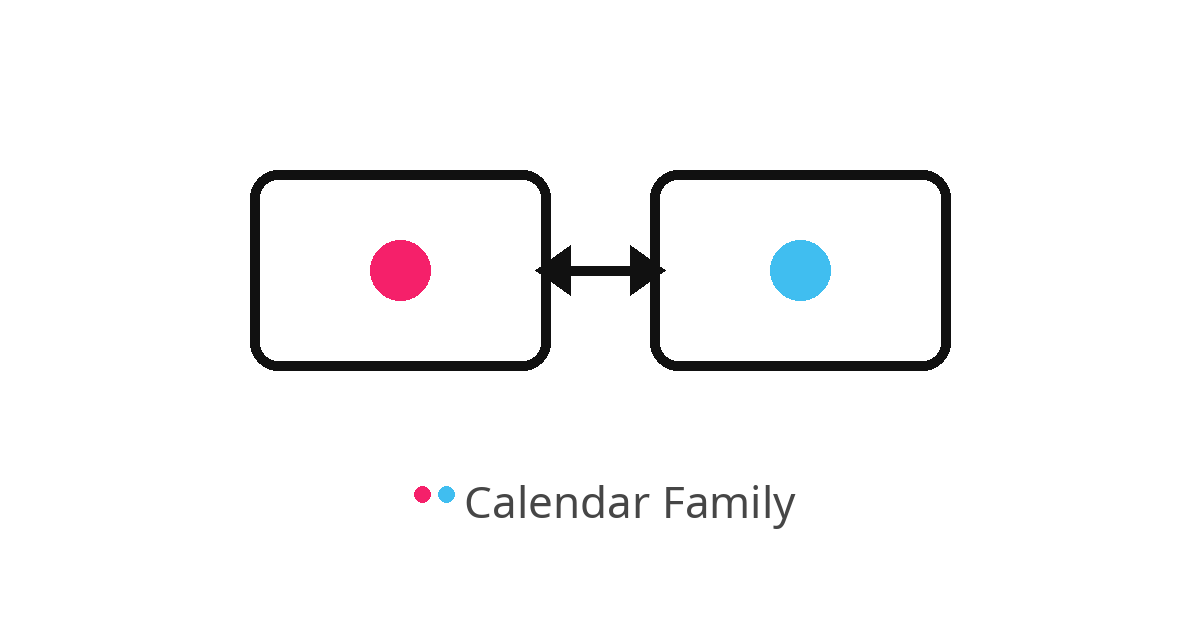
Invite Someone to Sync Their Calendar
An assistant, a business partner, a client or a co-parent has a calendar you need to see, and the only way in used to be asking for their password or for delegate access. Neither is a good idea. A link that lets them connect their own calendar gives you the sync without either.
They connect their own calendar
You send a single-use link. The person who opens it signs in with their own account, connects their own Google, Microsoft or iCloud calendar, and chooses which one to connect. Their sign-in stays theirs: you never see their password and you never get access to their account, and they never get access to yours.
You decide what is shared, and which way
When you make the link you pick one of your own calendars in your calendar family, what syncs (both ways, from your calendar to theirs, or from theirs to yours) and how much detail (busy times only, titles and times, or full details). The landing page tells them exactly that before they do anything, in your name.
Set it up
- Open the family and click Add calendar.
- In the provider menu, choose Someone else's calendar.
- Pick Your calendar, What syncs and How much detail, and check the Name shown to them.
- Click Create invite link.
- Copy link, use Share, or choose Email to open a draft in your own mail app.
The list on the same page shows where each link stands: sent, opened, joined, left, expired or revoked.
What the other person does
They open the link, click Continue, sign in, Choose the account your calendar is on, Choose the calendar to connect and click Connect this calendar. After that, events flow as you set, usually within about a minute.
Take it back whenever you like
A link works once and expires after 14 days. Revoke it before they join and the address stops working at once. Once they have joined they can leave from Shared with you, which removes their connection and the copies it made.