Set up Calendar Family with your own AI agent
This guide is written for an AI agent working for a person who has said something like "sync my work and personal calendars with Calendar Family". It is also readable by that person. It explains what Calendar Family is, how its parts fit together, the order of work that produces a running sync, what only the human can do, a worked example, and the checks that prove the result right.
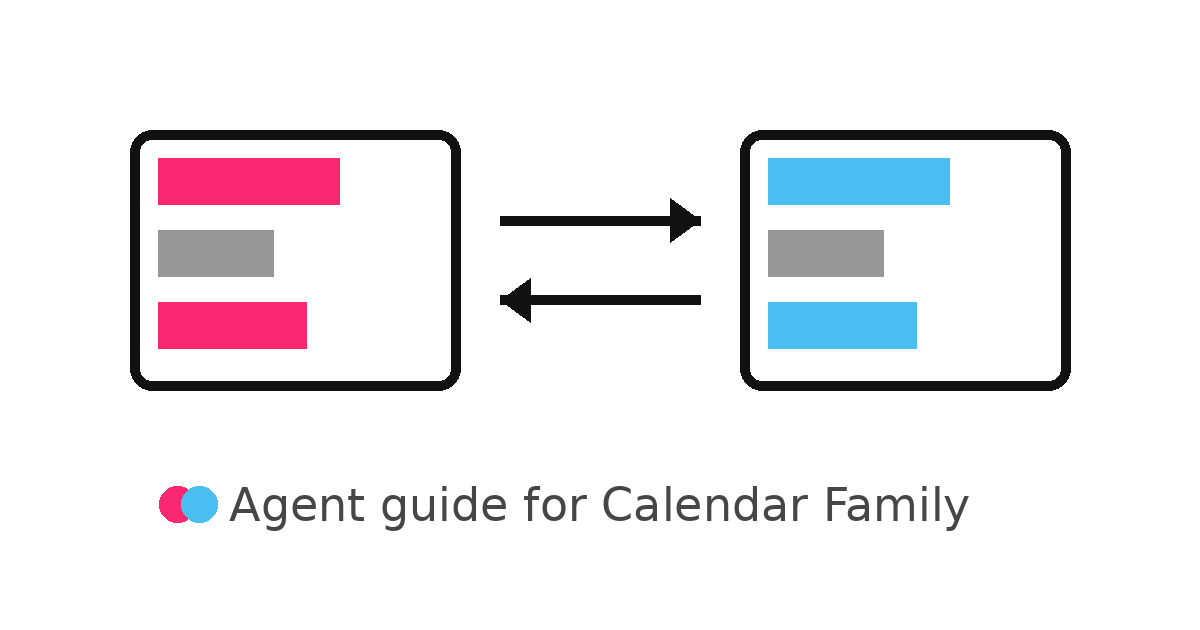
Calendar Family copies events between Google, Microsoft (Outlook) and Apple iCloud calendars, in one direction or both. There is no API for agents yet, so the agent guides the person through the app's own screens, or drives those screens in the person's signed-in browser session. A downloadable copy of this guide for agents that install skills is at https://www.calendarfamily.com/pub/agent/SKILL.md.
Rules for the agent
- Never ask for, store or type the user's passwords, one-time codes or Apple app-specific password. The user signs in and approves access themselves.
- Never read the user's email to find a sign-in link or code. Ask the user to complete the sign-in and tell you when it is done.
- Do only what the user asked. Do not connect extra calendars, add extra connections or start syncing a pair the user did not name.
- Choose the narrowest sharing level, Free/busy only, unless the user says otherwise. Ask before sharing titles or full details.
- Never delete a calendar, a connection or an account without the user saying so for that item. Removing a connection can offer to remove the copies it made: ask which the user wants.
- Use fictional data only when testing, never a real person's calendars.
- Stop and ask the human at each decision listed under "Decisions to put to the human".
How Calendar Family fits together
- Provider account: one sign-in at Google, Microsoft or Apple iCloud. Calendar Family holds the access the user approved for it, encrypted.
- Calendar: one calendar inside a provider account, such as "Work" or "Family". A user adds the calendars they want Calendar Family to know about.
- Family: a named set of the user's calendars that sync with each other. Every user gets a first family automatically, and can make more with New family. A calendar belongs to a family when it has been added to it.
- Connection: one link between exactly two calendars in a family, with a direction and a sharing level. A pair of calendars can have only one connection.
- Direction: one-way from the first calendar to the second, one-way the other way, or two-way. The default is one-way.
- Sharing level (the scope of a connection): All details, Titles only or Free/busy only. Free/busy only copies a block of busy time titled "(busy)" and leaves out the notes, the location and the attendees. The default is Free/busy only.
- Copy and original: an event the user created is the original. What Calendar Family writes into the other calendar is a copy. By default it changes and deletes only its own copies, never the originals.
- Status: a family is Active or Paused. A new family is Paused, and nothing is copied until the user chooses Start syncing.
Calendar Family never forwards a copy onward. A copy that lands on calendar B from calendar A does not then flow from B to C. Keeping three calendars blocked for each other needs three connections (A and B, A and C, B and C), and Connect several creates them in one step.
The method, in order
- Find out what the user wants. Which calendars, which providers, which direction, how much detail. Ask the decisions listed below in one batch.
- The user signs in. At https://www.calendarfamily.com/en the user chooses Sign in, types their email address and either opens the one-time link in the email or types its 6-digit code. A robot check runs first, and an automated browser may be refused it. This step is the user's.
- Open the first family. On the public pages the account menu offers Open my calendars, and inside the app the address https://www.calendarfamily.com/en/app opens the user's first family directly. Its Getting started card lists four steps: connect the first calendar account, add a second calendar, add a connection and start syncing. A user with no provider yet is first offered Connect your first calendar. To make another family choose New family from the menu and give it a name.
- Connect each provider account. A user with no provider yet sees Connect your first calendar with one button per provider. Otherwise choose Add calendar in the family, which opens Select your provider. Both lead to the same provider screens. Pick the provider. Google and Microsoft each send the user to their own sign-in and consent screen, which the user completes. Apple iCloud has no sign-in screen for other apps: the user creates an app-specific password at appleid.apple.com (Sign-In and Security, App-Specific Passwords), which needs two-factor authentication on their Apple ID, and pastes it into the Connect your Apple iCloud calendar form with their Apple ID email. It is not their normal Apple password, which does not work here.
- Add the calendars. When the provider is connected the user comes back to Calendar Family, and the provider appears under My account with a count of its calendars. For each calendar to sync, choose it in the list of the provider's calendars and click its Add calendar button, which adds the chosen calendar. The list opens with one calendar already selected, usually the user's main one, so choose the named calendar and check that it is the selected one before you click, or the wrong calendar is added. A provider the user has already connected is listed under Existing provider in the provider menu, and two accounts can share one email address, so tell them apart by the provider icon. A calendar the user can only read is marked Read-only: it can send events out but cannot receive any. To make a new calendar for the copies, choose Create a new calendar, which works for Google and Microsoft but not for Apple iCloud, where the user creates the calendar at Apple first. The user can review every connected provider and its calendars under My account, at https://www.calendarfamily.com/en/app/user/providers.
- Add the connections. A family needs two calendars before it offers Add connection, and three before it offers Connect several. For two calendars, click Add connection, choose the Source calendar and the Target calendar, the Sync direction and What to share, then click Add Connection. You can also draw a connection between two calendars in the family diagram. An agent that cannot use the diagram opens an existing connection with Edit connection on the Preview sync page. For three or more calendars click Connect several, tick the calendars (at most four at a time), answer What to share once and press the button, which says how many connections it will add.
- Preview the first sync. If events on the two calendars already match, a banner called Events on both calendars offers Preview sync. For each matching pair the user chooses Leave them alone (the default) or Keep these two in step. Calendar Family never chooses which copy is right. A Preview sync button also sits beside Start syncing while the family is paused. If the banner appears, the connection does not sync until it has been previewed.
- Start syncing. The Start syncing button appears once the family has two calendars and a connection. Click it. The button changes to Pause syncing and the status changes from Paused to Active; reload the page if it still shows the old state a few seconds later. The first pass over a new connection can take a few minutes.
- Check the result with the checks below, and tell the user what was set up.
Later jobs use the same screens: Pause syncing stops the family, the line between two calendars opens a connection to edit its direction, sharing level and filters, and removing a connection offers to remove the copies it made.
Sharing level and direction, in plain terms
| User says | Direction | Sharing level |
|---|---|---|
| "Show my work meetings as busy on my personal calendar" | One-way, work to personal | Free/busy only |
| "My partner and I should each see when the other is busy" | Two-way | Free/busy only |
| "I want my assistant to see what my meetings are" | One-way, mine to theirs | Titles only |
| "Keep two of my own calendars exactly the same" | Two-way | All details |
| "Keep all four of my calendars blocked for each other" | Connect several | Free/busy only |
A worked example
Priya Nair is a fictional person with a work calendar on Microsoft ([email protected], calendar "Priya Work") and a personal calendar on Google ([email protected], calendar "Priya Personal"). She says: "Sync my work and personal calendars with Calendar Family, so people booking my personal time can see my work meetings as busy."
The agent asks the decisions in one batch and learns that her work calendar should show as busy on her personal calendar, one way, with no details, and that she wants it running today. Then:
- Priya signs in at https://www.calendarfamily.com/en with her email link. The agent waits.
- In her first family she adds a calendar, chooses Microsoft and completes Microsoft's consent screen herself, then selects "Priya Work" and clicks Add calendar.
- She adds a calendar again, chooses Google, completes Google's consent screen, selects "Priya Personal" and clicks Add calendar.
- She clicks Add connection. Source calendar is "Priya Work", Target calendar is "Priya Personal", Sync direction is One-way → (Source to Target) and What to share is Free/busy only. She clicks Add Connection.
- No events match yet, so there is no preview. She clicks Start syncing, and the status turns Active.
- After a few minutes a work meeting on "Priya Work" shows on "Priya Personal" as "(busy)", with no title, notes or attendees.
Checks that prove the setup right
Run all of these and report each result to the user.
- Both calendars are listed. Under My account each provider shows the calendars added from it. If that page cannot be opened, the family page lists the same calendars.
- The family is Active. The status reads Active, not Paused, and the button reads Pause syncing, not Start syncing.
- The connection is the one asked for. Open it and confirm the source, the target, the direction and the sharing level match what the user said.
- No warning banner is showing. Provider access revoked, calendar no longer at the provider, calendar read-only and missing change notifications each show a banner with a button to fix them. Report any, and ask the user before using the button.
- An event arrives. Ask the user to create a test event on the source calendar and confirm its copy on the target. Google and Microsoft usually take about a minute and there is no guaranteed time. iCloud calendars are checked every 15 minutes, so a change that starts in iCloud can take longer. The sync covers from yesterday to one month ahead. The copy shows on the family page, where each event lists its status, and on the target calendar's own page. Where no one can create a test event, an event the family page already lists for the connection with the status Success proves the first copy, but not that a later change will sync.
- Nothing was copied that the user did not choose. The copy shows only what the sharing level allows.
When something goes wrong
- A provider reports access revoked or degraded. Syncing is paused until the user reconnects. Under My account choose Reauthenticate and let the user complete the provider's screen.
- An Apple password is refused. The user used their normal Apple ID password. They need an app-specific password.
- A target calendar shows Read-only. Calendar Family could not write to it, so it stopped copying into it. The user restores write access at the provider, or picks a different target.
- A second connection for the same pair is refused. A pair has one connection. Edit the existing one.
- Events are missing. Check the sync window, the connection's filters and whether the connection was previewed and the family started.
Decisions to put to the human
Collect these into one batch of questions rather than asking one at a time, and while you wait do only the steps that need no answer, such as reading the family page.
- Which calendars to connect, and on which provider accounts. Ask by name which calendar is work and which is personal, and never guess from a calendar's title.
- The direction for each pair of calendars.
- The sharing level for each connection, with Free/busy only as the default.
- Whether to create a new calendar for the copies or use an existing one.
- Whether events that already match on both calendars should be left alone or kept in step.
- Whether to start syncing now.
- Whether to remove the copies when a connection is deleted.
- Anything involving another person: an invite link, a booking link or a published feed.
What the user ends with
Their own calendars, still in their own provider accounts, kept in step by connections they chose, at the sharing level they chose, with every original untouched. They can pause syncing, change a connection or leave at any time, and they can delete their account from My account, which deletes all the data Calendar Family holds for them. See also what Calendar Family does and does not do and how it looks after your events.